What is a Google review link?
It's a short address that belongs to your Business Profile, usually starting with https://g.page/r/. When a customer opens it, the rating window appears straight away: they pick their stars, write a few words and post.
Without it, the customer has to open Google Maps, type your name, find the right listing, scroll down to the reviews and tap “Write a review”. Every extra step loses reviews.
Good to know: Google requires customers to be signed in to a Google account to post a review. A non-Gmail email address is enough to create one.
Get the link on a computer (the official way)
- Sign in to the Google account that manages your Business Profile.
- Open your Business Profile: search for your business's exact name on Google, or go through business.google.com (new tab).
- Select “Read reviews”, then “Get more reviews”.
- Select “Copy”: the link is now on your clipboard. Paste it into a note so you always have it at hand.
Google keeps updating its menus: depending on your version, the button may also be called “Ask for reviews” or “Share review form”. The principle stays the same. The official steps are in Google's help page Create a link or QR code to ask for reviews (new tab).
What about on a phone?
Signed in with the account that manages the profile, open your business in the Google Maps app or in Google Search: the “Ask for reviews” (or “Share review form”) button usually offers the same link, ready to copy or to send straight through WhatsApp.
One exception: for now, Google only lets you generate the official review QR code from a browser on a computer (see below).
No Google profile yet? Start there
The review link belongs to a Google Business Profile. If your business doesn't show up on Google Maps, or someone else created the listing, you first need to add or claim it, then verify it. Google explains how in Add or claim your Business Profile (new tab).
Verification can take a few days depending on the method offered. Use that time to complete your profile: category, address, opening hours, phone number, photos. Google says that complete, accurate profiles are more likely to show up in nearby searches.
Test your link before printing or sending it
- Open it in a private browsing window: your business's review window should appear (after signing in to a Google account).
- Check the name and address shown. With several listings (two addresses, an old profile), this is the most common mistake.
- Test it on an iPhone and on an Android phone.
QR code or NFC: which one?
The official QR code is free: on a computer, at the “Get more reviews” step, right-click the QR code and choose “Save image as”. It works with any smartphone camera, but customers have to take out their phone, open the camera, aim and wait for it to focus.
NFC removes those steps: the customer holds their phone close and the page opens, like a contactless payment (on an iPhone, they touch the notification that appears at the top of the screen). It works on iPhone XR, XS and newer and on the vast majority of Android phones with NFC.
- QR code only: free and universal, ideal on a receipt, a poster or an email.
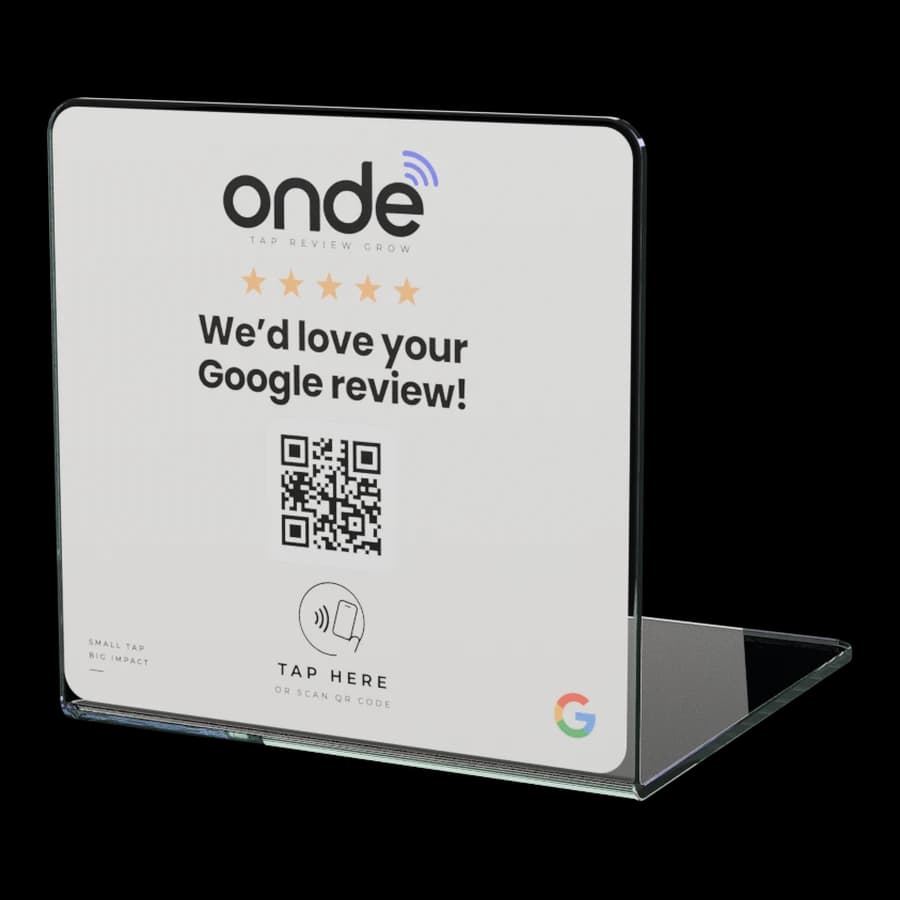
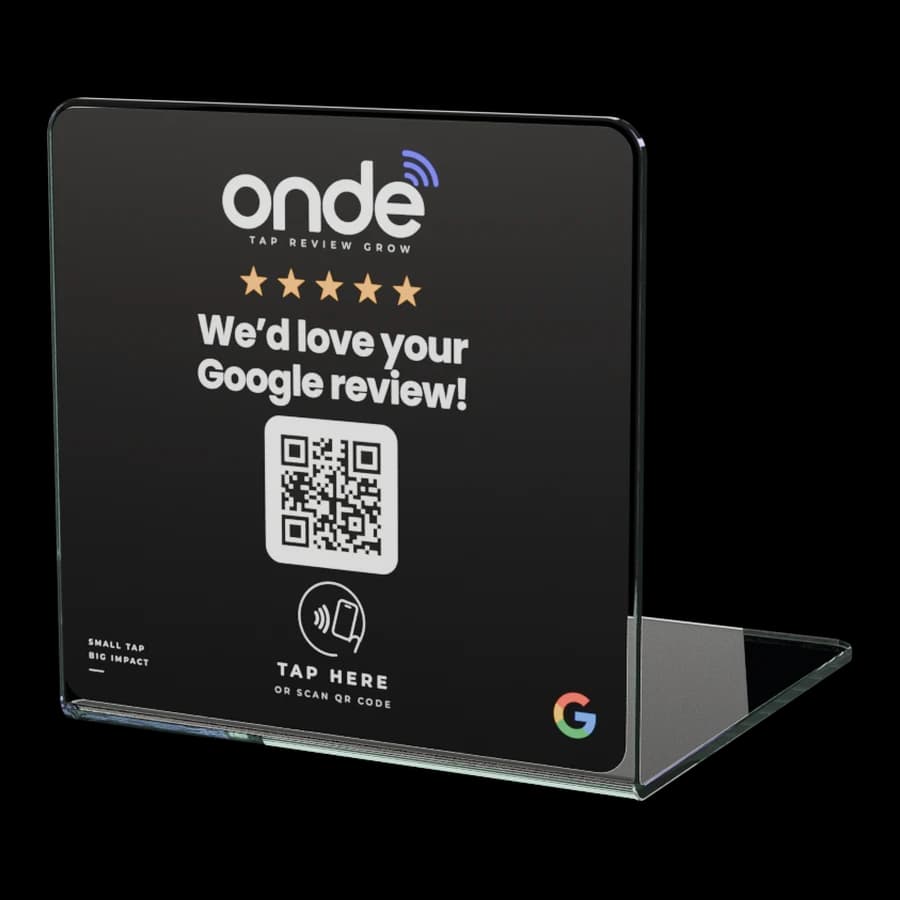
- NFC + QR code: the fastest at the counter or at the table, with the QR code covering phones without NFC. That's the format of ONDE stands.
- Smart link: on ONDE products, the chip and the QR code lead to a permanent link (onde.tn/t/…). If your Google link ever changes, we update the destination remotely, with nothing to reprint.
Mistakes to avoid
- Sharing your Google Maps listing instead of the review link: the customer still has to find “Write a review”.
- Printing a link you haven't tested: one wrong listing, and every printed item has to be redone.
- Offering a discount or a gift in exchange for a review: Google forbids it and can remove the reviews involved.
- Asking for “5 stars” or a specific sentence: Google forbids influencing the rating or the content of a review.
FAQ
Frequently asked questions
Yes. Google provides the review link and QR code for free to any business that manages its profile.